Pages

Friday, October 30, 2015

"How this was Done: Street Scene Stairway Pastels" Corel

Street Scene Stairway Pastels

  • Street Scene Stairway
    • Corel Painter Essentials 5
      • Effects; Equalize
        • Black and White Points
        • Black 0%
        • White 65.9
        • Gamma 38%
      • Adjust Color
        • Uniform Color Setting
          • Hue Shift 0%
          • Saturation 82%
          • Value -25%
      • Select Pastel Drawing
        • Chalk, Pastels, Crayons
          • Square Chalk Brush
          • Straight Line setting
          • Size 14.3
          • Opacity100%
          • Grain 12%
          • Rough Charcoal Paper
    • Corel PSP Pro X3
      • Added Signature
        • Placed as new Layer
        • Sized to fit
        • Placed on image
        • Property Lighten
        • Merged all Layers
        • Saved iteration
          • Resized for display on Blog Post
Another fine photograph from Morguefile Free Photos. I did miss a step I took in the outline: I used a new layer to paint on for the Sky, using the Eye Dropper to select a blue from the image. Sometimes my notes get a little skewed! My apologies to the reader for my error.


Thursday, October 29, 2015

"How To: Hills, Mountains, Cloudy Skies Oils Plus" Corel

Hills, Mountains, Cloudy Skies

These are the Programs and settings I used to create today's image. I am still experimenting with the outline format. Please let me know if you prefer this format or a Narrative Style format explaining how to use the stated Programs. Comments welcome!
  • Corel Painter Essentials 5
    • Landscape – Hills, Mountains, Cloudy Skies
      • Effects
        • Tonal Control
          • Increased Saturation
      • Select Oil Painting
        • Acrylics and Oils
          • Real Wet Brush
          • Size 25
          • Opacity 100%
          • Freehand Brush setting
          • Artists Rough Paper
          • Paint with these settings
      • Select Detailed Watercolor
        • Still using Real Wet Brush
          • Size 10.2
          • Opacity 82%
          • Straight Brush
          • Same Paper setting
          • Paint with these settings
          • Stop before complete for just light effect
      • Select Colored Pencil Drawing
        • Pencils, Pens and Markers
          • Dry Ink Brush
          • Freehand Strokes
          • Size 31.5
          • Opacity 24%
          • Grain 100%
          • Same Paper setting
          • Paint with these settings
          • Stop before complete for just light effect
  • Corel PSP Pro X3
    • Adjust
      • Smart Photo Fix
        • Brighter 32
        • Shadows -10
        • Highlights -5
        • Saturation 50
        • Focus- Original 47
      • Opened Signature
        • Placed as new layer
        • Sized to fit
        • Merged all Layers; Added 10 pixel Black Border
This photograph was from the Morguefile Free Photos. I truly appreciate their sharing some very good compositions for Digitally Painting and adjusting.

Wednesday, October 28, 2015

"How to: Pier at Sunset - Impressionistic - Pen and Ink" Corel

Pier at Sunset - Impressionistic - Pen and Ink
This photograph is from Unsplash Free Photos. I selected it for the perspective and great color of the Sunset. Below are the Programs and Settings used to create todays Digital Painting:
  • Corel Painter Essentials 5
    • Impressionist Painting
      • Impressionist Cloner Brush
      • Size 19.0; Opacity 100%
      • Straight Line Setting
      • Concrete Paper
    • Pencils, Pen, Markers
      • Felt Marker Brush
      • Size 8.3; Opacity 21%; Grain 21%
      • Concrete Paper
      • Straight Line Setting
        • Paint two times
        • Switch to Curved Line Setting
          • Paint once more
    • Save large iteration
  • Picasa 3+
    • HDR tool
      • Mid High Radius
      • Medium Strength
      • Low Fade; Apply and Save
  • Corel PSP Pro X3
    • Smart Photo Fix
      • Brighter +12
      • Shadows -20
      • Saturation; More Colorful +50
      • Focus; Original 26
    • New Layer for Signature
      • Open Signature file
      • Resize
      • Place
    • Merge all layers
    • Save Large iteration 72dpi
    • Resize Image for display
    • Save with New name

I hope this format is informative, I want to explain a bit more of what I do to create my Digital Visual Artworks. Comments and shares always welcome!

Monday, October 26, 2015

"Steps and Settings: Late Autumn Walker On a Dirt Road." Corel

"Late Autumn Walker On a Dirt Road."


I've had a busy weekend so not much time to work on any Digital Paintings. Today I started about 12:30pm to work on the computer and I found time for one. The photograph is from Morguefile Free Photos, a landscape. It depicts a "Late Autumn Walker On a Dirt Road."

I opened in Corel Painter Essentials 5 and tried a few settings for the image. I settled on an Oil Painting, Concrete Paper Texture, choosing from the Photo Painting Brushes I picked the Grainy Variable Pencil. The Opacity was set at 74% and the Grain to 12%. I then Digitally Painted this piece using those settings.

Saving the large iteration I opened in Corel PSP Pro X3. Here I decided to add an Ornate Frame with the Inside Image setting. I opened and copied my signature and Placed as New Layer into the piece. I resized it and placed it and applied the Property setting Lighten for transparency. I merged the layers.

Next I used the Smart Photo Fix tool and upped the colors. And I used Increase to RGB 16-bit on the whole image.

I like the museum look and feel of the Ornate Frame, and the colors and detail of the Grainy Variable Pencil within the making of this image. I saved the large iteration and then resized for display.

Thursday, October 22, 2015

"How To: Two Images Digitally Painted in Painter Essentials 5" Corel

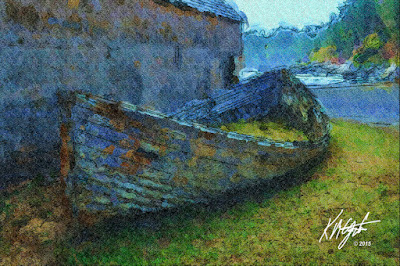
Old Boat

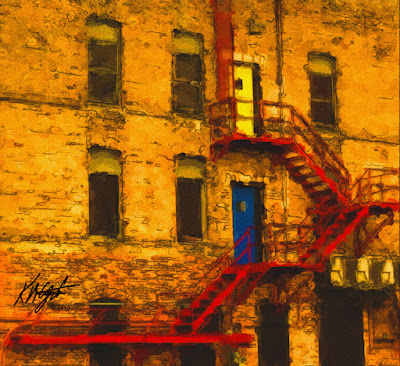
Red Escape Stairway

I went ahead and purchased Corel Painter Essentials 5 at 30% off. I welcome it into my arsenal of Digital Visual Art Programs. It will accomplish much as I create new Digital Visual Artworks. And it is a Current Version supported by Corel Corporation. A big plus as much of what I use are Legacy Corel Programs, which sometimes work wonky with Windows 10.

I perused Morguefile for Free Photos this afternoon and discovered a few photographs I plan to Digitally alter and display here on gatzkART!. Take for instance this image I worked on today. An Old Boat no longer in use, beached for a while it seems. I opened it in Painter Essentials 5 and digitally painted as a Watercolor Sketch, a Wet brush, and regular paper. I used the color palette from the original photograph. After it was painted I selected Apply Surface Texture, using an angular texture. I saved that large iteration.

I opened this in Corel PSP Pro X3. Here I applied the Smart Photo Fix, brightening it, increased the color, and shadows. I then used the Curves to add depth to the colors. I upped the Saturation Vibrancy by 33 for that punch I like. I added my signature, which I finally placed in it's own folder to find the black or white one easier. I fit and placed it using the property Lighten for transparency. I saved this large file again.

I resized for display and then adjusted the Curves again as some depth was lost in downsizing. I saved that file at 150dpi RGB 8-bit JPG.

Still testing Corel Painter Essentials 5 I used a Building with Red Escape Stairs for my subject today, also from Morguefile Free Photos. I used the Watercolor Sketch setting, Tapered Camel Brush, Worn Pavement Paper and I also added back in some details. I used the Acrylics & Oil Glazing Round Brush for that. I upped the Saturation in Essentials 5.

I then opened in Corel PSP Pro X3 and added Saturation Vibrancy for the pop to the colors. Here I also added my signature file as a layer, sizing it and placing it, applying the property Multiply for transparency. I merged all layers and saved the large file at 150dpi, RGB 8-bits.

I saved this almost square Digitally Painted photograph for display by resizing it still at 150dpi and RGB 8-bits, JPG.

I am thoroughly enjoying using Corel Painter Essentials 5 and it's diverse selection of brush variants and settings for creating Digitally Painted Visual Artworks. I would recommend this program to those who would like to create great paintings digitally. It is still on sale at 30% off until midnight October 22, 2015, that's tonight. Search for Corel Corporation and Painter Essentials 5 for the sale.